GrapheneOS & setup
What GrapheneOS is, how it's installed, how to verify a phone you bought from us (or anyone else), and what to expect in daily use.
What is GrapheneOS?
GrapheneOS is a free, open-source, privacy- and security-focused mobile operating system with Android app compatibility. It's developed by a non-profit open-source project funded by donations. It is not a product of Hardened Pixel Co., and we're not part of the project.
It's built on the Android Open Source Project (AOSP), with extensive hardening on top: exploit mitigations, stronger sandboxing, and privacy controls that stock Android doesn't offer. No Google apps or services are bundled, and the OS has no analytics or telemetry.
Official sources: grapheneos.org, the features page, the FAQ and the usage guide. If anything on our site conflicts with them, the official documentation is correct.
Key features (summary)
Exploit protection
Hardened memory allocator (hardened_malloc), hardware memory tagging (MTE) on Pixel 8 and newer, and many other hardening changes to the OS, kernel and the bundled Vanadium browser.
Permission controls
Network and Sensors permission toggles per app, plus Storage Scopes and Contact Scopes, which let you hand an app only the files or contacts you choose.
Lock-screen hardening
PIN scrambling, auto reboot after a configurable period of inactivity (which puts your data back at rest), a duress PIN/password that wipes the device, and USB-C port controls.
Profiles & isolation
Improved, more numerous user profiles, each with its own encryption keys, plus an "end session" button to put a profile back at rest without rebooting.
This is a short summary. See the official features page for the full, current list.
Why only Google Pixel?
GrapheneOS supports only devices that meet strict hardware security requirements. These include support for alternate operating systems with full hardware security (including re-locking the bootloader), timely monthly firmware updates, a secure element (the Titan M2 in Pixels) and hardware memory tagging. Right now, only Pixels meet those requirements.
The project strongly recommends Pixel 8 generation and newer. These come with a minimum of 7 years of support from launch, plus ARMv9 security features such as memory tagging. That's why most of our range is Pixel 8a, 9, 9a and 10.
The Pixel 6 and 7 series are still on GrapheneOS's official production support list, with a 5-year guarantee: until October 2026 (6 / 6 Pro), July 2027 (6a), October 2027 (7 / 7 Pro) and May 2028 (7a). We sell them as budget options with clear warnings. After the guarantee ends, GrapheneOS says official updates typically end shortly afterwards, and any extended support releases are a stopgap that can't provide full security patches.
How installation works
GrapheneOS has two officially supported install methods:
- Web installer (recommended for most people). It runs in a Chromium-based browser using WebUSB.
- Command-line install for technical users, using
fastbootand signature verification with OpenSSH.
We use the official methods only. In outline:
- Enable OEM unlockingIn stock Android: Settings → About phone, tap Build number to unlock Developer options, then toggle OEM unlocking.
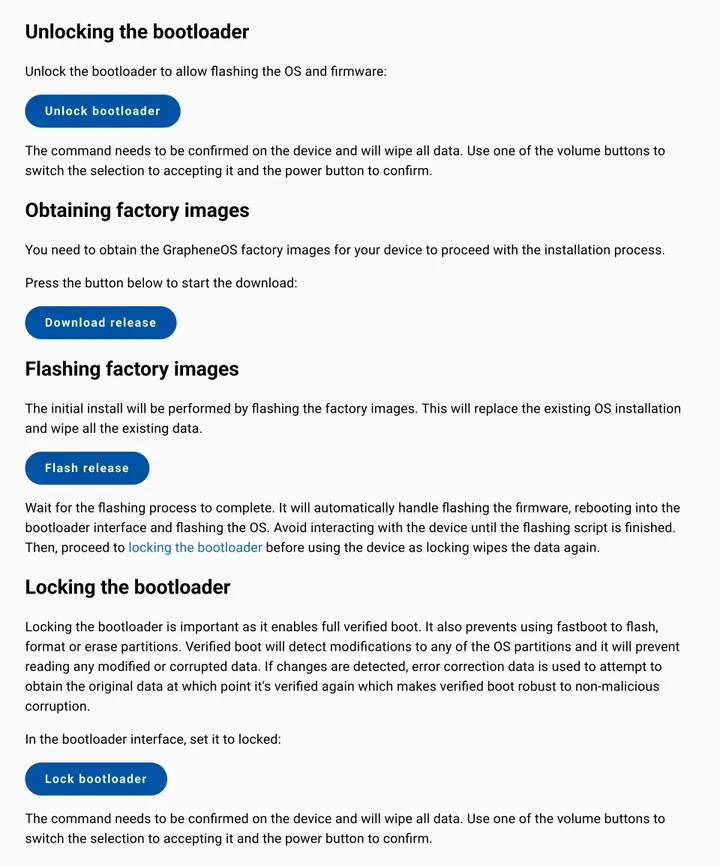
- Boot to fastboot mode and unlock the bootloaderThis wipes the device.
- Download and flash the official factory imagesThe installer verifies them and flashes the latest firmware and OS.
- Re-lock the bootloaderThis is essential. Verified boot then enforces the GrapheneOS signing key, and locking wipes the device again.
- Disable OEM unlockingFrom the GrapheneOS settings after first boot.


Prefer to do it yourself? You should consider it.
The GrapheneOS project states that it isn't affiliated with or endorsing any company selling devices with GrapheneOS. Its official recommendation is to buy a supported device and install GrapheneOS yourself. It's free, the web installer is easy to use, and the official community is happy to help. If you're comfortable plugging a phone into a computer for about 15–30 minutes, follow the official web install guide. We sell prepared devices for people who'd rather pay for convenience, inspection and support.
Verify your device (please do this)
Following the project's guidance for preinstalled devices, here's what to do when your phone arrives, whether it's from us or anyone else:
- Check the verified boot key hashWhen a phone running GrapheneOS boots, it shows a yellow notice that it's loading a different operating system, along with an ID. Compare that ID with the official verified boot key hash for your model listed in the install guide. If it doesn't match, stop and contact us.
- Factory reset from recoveryThis makes sure you start from a clean state with nothing left on the device. Reboot into recovery and choose "Factory reset" (or use the reset option in Settings → System → Reset options). It wipes all data, so do it before you set the phone up.
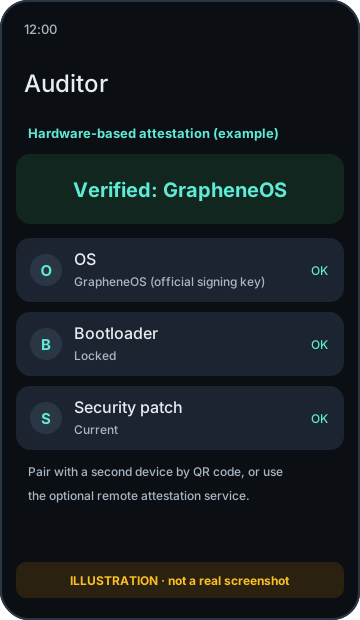
- Set up hardware-based attestation with AuditorThe preinstalled Auditor app uses the phone's hardware security to verify the OS and its integrity. Pair it with a second Android device running Auditor (local verification by QR code), or enable remote attestation through the official attestation service. Later checks confirm that nothing has changed.
First-time setup
- Set a strong PIN or passphrase. With the secure element's throttling, a random 6+ digit PIN is far stronger than on most phones, and a passphrase is stronger still.
- Connect to Wi-Fi and let the System Updater check for the latest release.
- Decide whether you need Google Play, and in which profile (see below).
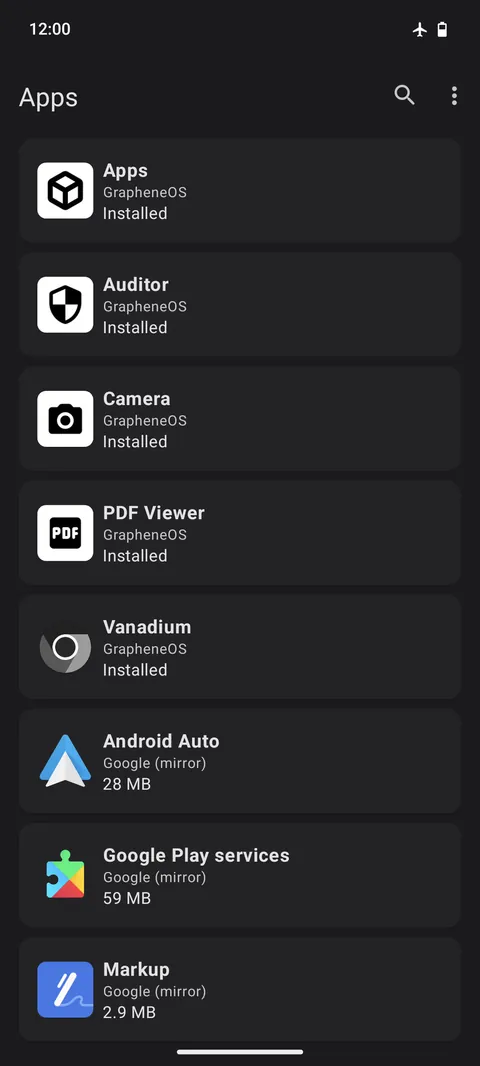
- Install apps from the GrapheneOS App Store, Accrescent, F-Droid-style repositories, or Google Play, depending on your preference.
- Read our best practices guide.
Sandboxed Google Play (optional)
GrapheneOS never bundles Google services. If you need apps that depend on them, you can install sandboxed Google Play from the GrapheneOS App Store. It runs as regular, unprivileged apps inside the standard app sandbox, without the special system-level access it gets on stock Android. You choose which profile(s) it lives in. Many people keep it in a separate profile, away from their main one.
Android Auto is supported as an optional extension with dedicated permission toggles. Some functionality that requires deep OS integration is unavailable. See the official sandboxed Google Play docs.
Limitations to know about
- Google Wallet contactless (tap-to-pay) payments don't work. Google requires a Google-certified OS. Some alternatives (for example, certain bank-specific or third-party wallets in some regions) may work. Check before relying on them.
- Apps that require Google's Play Integrity "device" or "strong" verdicts may refuse to run. These include some banking, payment, gaming and streaming apps. GrapheneOS doesn't spoof these checks. Apps can choose to support GrapheneOS through Android's hardware attestation API, and some do. A community-maintained (unofficial) banking app compatibility list exists, but it isn't guaranteed.
- No Factory Reset Protection tied to a Google account. Treat physical security accordingly.
- Some Pixel-exclusive Google features (certain AI features, Call Screen, and other Google app integrations) aren't available or work differently.
- Managing eSIMs requires enabling the "eSIM support" toggle (Settings → Network & internet), which uses Google's proprietary eSIM component. It doesn't require Google Play. See our SIM page.
Updates
GrapheneOS installs updates automatically in the background and applies them on reboot. Updates come directly from GrapheneOS, never from us, and we can't push anything to your device. Full security updates continue only as long as Google supports the hardware. See each model's "updates until" date.