Sandbox your bank and personal apps
GrapheneOS lets you run Google Play and the apps that need it, such as many banking apps, in their own walled-off profile, while the rest of your phone stays Google-free. Here is how it works and an example setup.
How it works
Google Play as normal apps
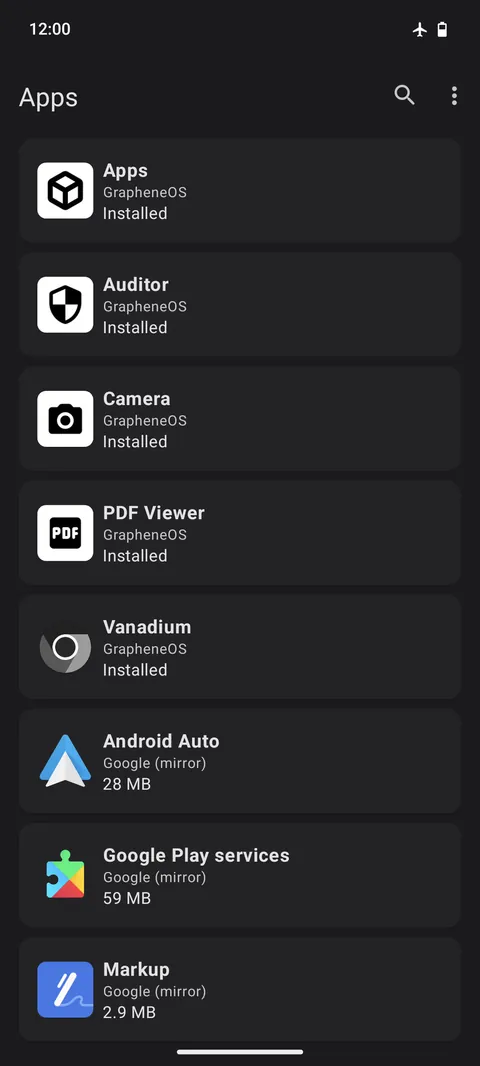
Sandboxed Google Play is installed like any other app, with no special privileges. It can only access what you allow, and only in the profile you put it in.
Separate profiles
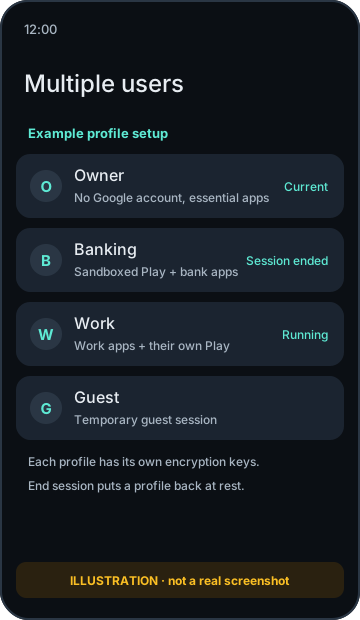
Each user profile has its own encryption keys, apps, files and contacts. GrapheneOS supports up to 31 secondary users plus a guest.
End session
One tap ends a profile's session, so its apps stop running and its data goes back to rest, encrypted, without a reboot.
Example setup
Three walled-off profiles on one phone. Each has its own encryption keys, apps, files and contacts.
- Owner profile: everyday apps such as Signal, a browser, maps and notes. No Google Play, no Google account. Apps from the GrapheneOS App Store or Accrescent.
- Banking profile: sandboxed Google Play (no special access), your banking and payment apps, nothing else. End the session when you're done.
- Optional extra profile: work or social apps you don't trust with your main data, with its own Google Play if needed. Or use Private Space inside the Owner profile.
-
Everyday profile No Google
Signal, browser, maps, notes. Apps from the GrapheneOS App Store or Accrescent.
- Encrypted separately
-
Banking profile Sandboxed Play
Google Play as ordinary sandboxed apps, plus your bank. End the session when you're done.
- Encrypted separately
-
Work or social Optional
Apps you don't trust with your main data. GrapheneOS supports up to 31 profiles plus a guest.
See screenshots and illustrations

Step by step
- Set up the Owner profileSet a strong PIN or passphrase. Install your everyday apps without Google Play.
- Create a Banking profileSettings → System → Users → Add user. Give it its own PIN.
- Install sandboxed Google Play in that profileSwitch to the Banking profile, open the GrapheneOS App Store and install Google Play services. It stays in that profile only.
- Install your bank appsSign in to the Play Store (a Google account is needed for most Play Store downloads) and install only what you need.
- Turn on notification forwarding if you want itIn the Owner profile, under Users, you can allow notifications from other profiles to be shown, so you still see bank alerts.
- End the session when you're doneOpen the user switcher in quick settings and choose "End session", or switch back to Owner and end it from there.
Good to know
Learn more: Private Space
Android's Private Space also works on GrapheneOS: a separate, lockable area inside your profile for apps you want hidden and paused when it's locked. It's quicker to use than switching users, but full separate profiles give stronger separation.
Learn more: per-app controls inside each profile
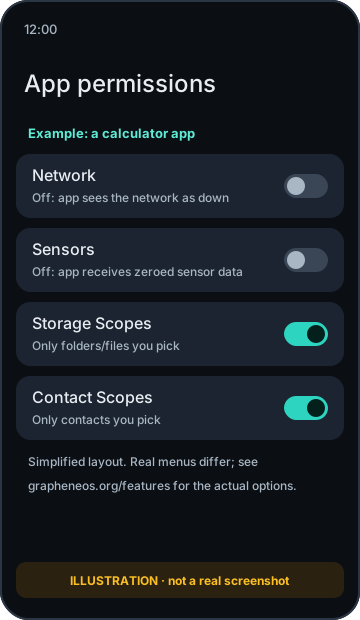
In any profile you can turn off Network for an app (it can't connect anywhere) or Sensors (it gets no motion or environment sensor data), and use Storage and Contact Scopes. See privacy & anonymity.
Banking apps: the honest version
- Many banking apps work on GrapheneOS, especially with sandboxed Google Play in the same profile.
- Some don't. Apps that require Google's Play Integrity "device" or "strong" verdicts refuse to run on any OS Google hasn't certified, including GrapheneOS. GrapheneOS won't spoof these checks.
- Google Wallet tap-to-pay doesn't work. Some banks' own tap-to-pay may, depending on the bank and region.
- Things change. A bank can add or drop support with any app update.
Check the community-maintained banking app compatibility list (unofficial), or tell us your bank and we'll share what we know. We can't guarantee any specific app will work.
Sources: GrapheneOS usage guide, features and FAQ.